Orders Not Despatched Stock Report - v2
Orders Not Despatched Stock Report - v2
Overview
This article explains the new version of the Orders Not Despatched Stock Report, now available as
acr30.php. It replaces the older cr30.php report and introduces several improvements, including asynchronous report generation, job tracking, error logging, and faster data retrieval.This update is designed to improve performance and reliability, especially for users handling large volumes of order data.
Steps to Use the New Report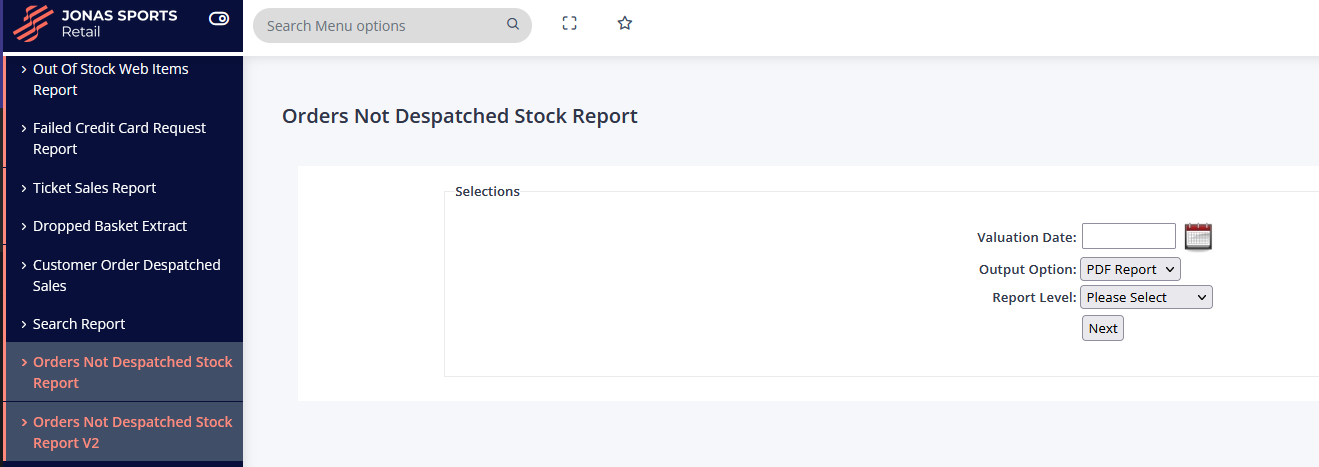
- Access the Report
- Order Reporting > Orders Not Despatched Stock Report v2 (acr30.php)
- Submit a Report Request
- Choose your desired filters (e.g. valuation date, output option and Report Level).
- Click Next to queue the report for processing.
- Track Report Status
- Go to the View Report section.
- Locate your report.
- Download or View the Report
- Once the status is Completed, click the download .
Notes
- Asynchronous Processing: Reports are no longer generated instantly. This allows the system to handle larger datasets without timing out.
- Error Logging: Any issues during report generation are logged for troubleshooting.
- Performance Improvements: Data retrieval has been optimised, resulting in faster report generation times compared to the previous version.
Common Issues
- Report Not Appearing in Queue: Ensure you’ve submitted the request correctly and that filters are valid.
- Job Status Stuck on 'Processing': This may indicate a large dataset or system delay. Try refreshing or check back later.
Related Articles
Report Overview
Area Report Title Summary of Contents Reporting Stock Valuation Detailed report showing value of stock on any date. Options include: - Branch / Total level, Department/Sub Department/Sku, Net realisable rules yes / no, exclude / include discontinued ...Collect Orders Report
The collect Orders Report sits under Order Reporting You can run a report under the Order Reporting menu in the back office to view a list of collect orders in different statuses: Option 1: Orders that have been collected Option 2: Orders that have ...Update Collect Orders? - Updating Orders as Collected
When the customer comes to the shop to pick up their parcel you need to update it as completed and enter the name of the customer collecting. From the main menu go to the Collect Order Update program under the dispatching menu. Click the mark orders ...Purchase Invoice Report
This report has been added to give a single report in which you can see matched invoices and which Purchase Orders have been matched against them. The report includes all information about each matched invoice including; the register number, the date ...Stock Valuation Report
Menu: Reporting > Stock Valuation Report A detailed report that presents the value of the stock on a specific date. You can customise the report by choosing options such as branch or total level, department/sub-department/SKU, whether to apply net ...