Dynamic Email Templates for Order Returns and Cancellations - Sale And Returns
Dynamic Email Templates for Order Returns and Cancellations
This article explains how to use the extended Reason Maintenance ( Sale And Returns Only ) programme to configure dynamic email templates for order cancellations and returns. Clubs can now define custom templates based on cancellation or return reasons, with dynamic tags that auto-fill order details.
Overview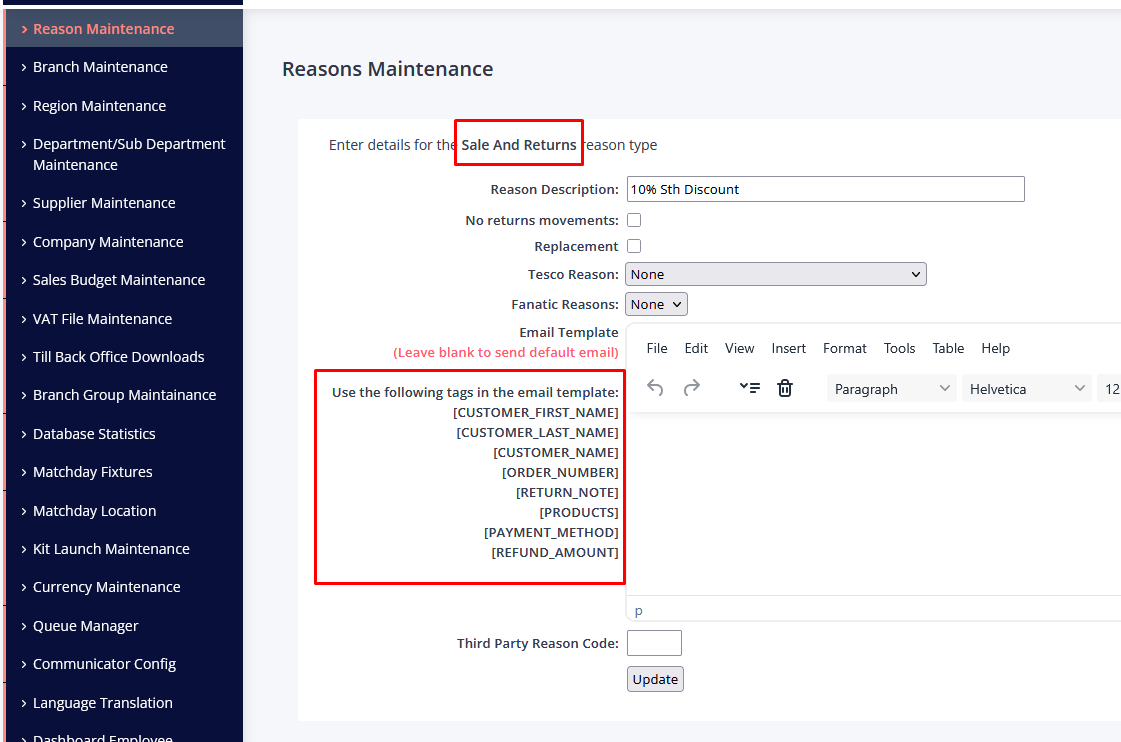
Custom Templates by Reason
Clubs can define email templates for each cancellation or return reason ( Sale And Returns Only ).Dynamic Content Tags
Tags (shown on the left side of the template editor) are automatically replaced with order-specific details.Flexible Messaging
Users can edit or add custom messages at runtime before sending the email.Product-Specific Return Reasons
Return reasons vary by product and are shown in a dropdown during the return process.
Steps to Configure and Use Email Templates
1. Update Reason Maintenance
- Go to the File Maintenance > Reason Maintenance .
- Select a reason Type from the list ( Sale and Returns ).
- Enter your custom email template in the Text Area.
- Use dynamic tags from the left panel (e.g.
{{ORDER_NUMBER}},{{PRODUCTS}}).
- Use dynamic tags from the left panel (e.g.
2. Using the Template in Cancellation Flow
- In the Order Cancellation screen, select a reason.
- If a template is defined for that reason, it will appear in the text area below.
- You can:
- Use the pre-filled template.
- Add or edit the message manually.
- The final message will be sent to the customer upon cancellation.
3. Using the Template in Return Flow
- Select the product to be returned.
- A dropdown will show relevant return reasons (e.g. “Faultyâ€, “Size Issueâ€).
- Choose a reason to load the associated template.
- Edit or confirm the message before sending.
Tips
- Use clear and friendly language in templates to improve customer experience.
- Test templates with sample orders to ensure tags are replaced correctly
Common Issues
- Tags Not Replaced: Ensure all required fields (e.g. Return Note) are filled.
- Template Not Appearing: Confirm a template is saved for the selected reason.
- Incorrect Payment Method Names: Some clubs use custom names for payment methods (e.g. Loyalty Card, Teamcard Cash). To support this: Go to Language Translations.
- Define labels for the following keys:
PAYMENT_METHOD_LOYALTY_CARDPAYMENT_METHOD_GIFT_CARDPAYMENT_METHOD_TEAM_CARD
- These labels will appear correctly in emails and UI
Related Articles
Return/Cancellation Orders - Email Templates
This guide will run through with you how to set up and use the email templates. which can give you a custom email to send to the customer based on the reason selected for order returns or cancellations. Setting up the email template. File Maintenance ...How Do I Set Up A Pre-Order or Kit Launch?
PLEASE READ THE WHOLE DOCUMENT BEFORE YOU MAKE ANY CHANGES TO THE SYSTEM. NOTE: We need to know at least 1 week in advance when you are planning to go live with your Kit Launch. This is because we need to plan our resources to be able to assist you ...Customer Order Despatch Confirmation
Once the order has been picked and packed you will need to update it as despatched. Special Note: Once you update the order the stock is updated and the customer is sent an email with the despatch details. Enter the order number of the order you wish ...How Do I Approve A Purchase Order?
Approving the Purchase Order Select the Purchase Order Approval program Before Purchase Orders can be printed or emailed to the Supplier, they must be approved on the system. For a purchase order to be mailed to a supplier, the supplier must have the ...Creating/Amending A Purchase Order?
Creating a Purchase Order Click into Purchase Orders You are able to suspend and recall an incomplete purchase orders as well as amend an existing purchase order. For more information please refer to these specific topics in the Purchase Ordering ...